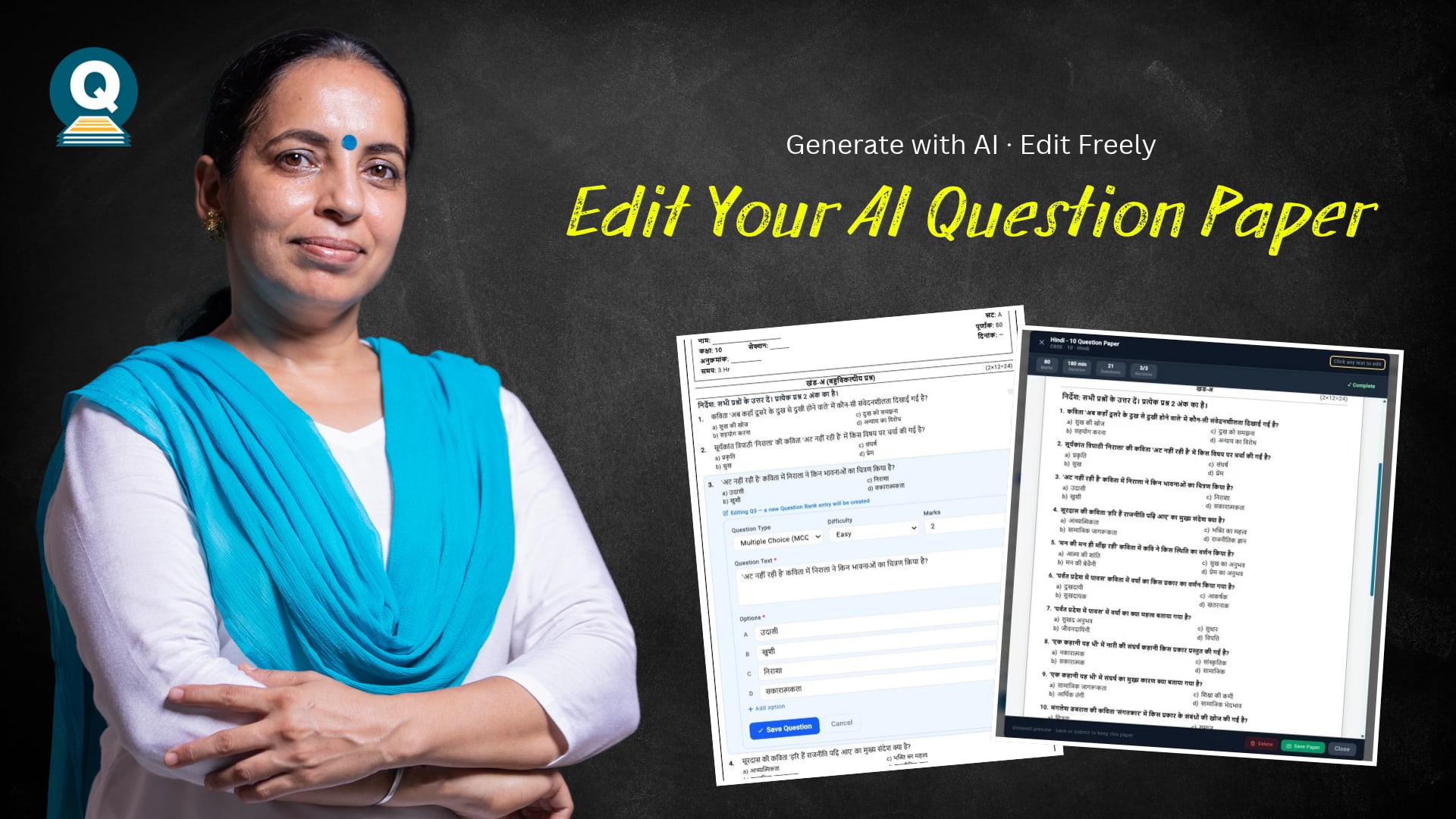
You can edit every question in an AI-generated paper in QPaper Labs, as many times as you like. There are two places to do it. First, in the preview right after the paper is generated, where you click any text to change it. Second, from Paper Management in the left sidebar, where you can reopen any saved paper and change a question’s type, difficulty, marks, wording and options.
AI is fast, but it is not perfect. A question may be too hard for your class, an option may be confusing, or you may want an example you used in class. A good question paper tool should let the teacher fix this in seconds, without generating the whole paper again. Here is exactly where to find each option and how to use it.
Why do you need to edit an AI-generated paper?
Treat the AI paper as a strong first draft. You know your students and what you taught, so you are the final reviewer. Teachers usually edit a generated paper to:
Fix a mistake: a wrong fact, a typo, a matra error, or an MCQ with two correct options
Change the level: make a question easier for a weaker section or harder for toppers
Change the marks: turn a 2-mark question into a 1-mark one to match your blueprint
Match your teaching: use the examples, names or contexts you used in class
Improve options: replace a weak distractor or add one more option
Place 1: Edit in the preview right after generating
Where to find it: Create Paper → Auto-Generate → Generate Paper with AI. The preview opens on its own as soon as the paper is ready.
The top bar of the preview shows the total marks, duration, number of questions and sections, so you can check the structure at a glance. The top-right corner reminds you: Click any text to edit.
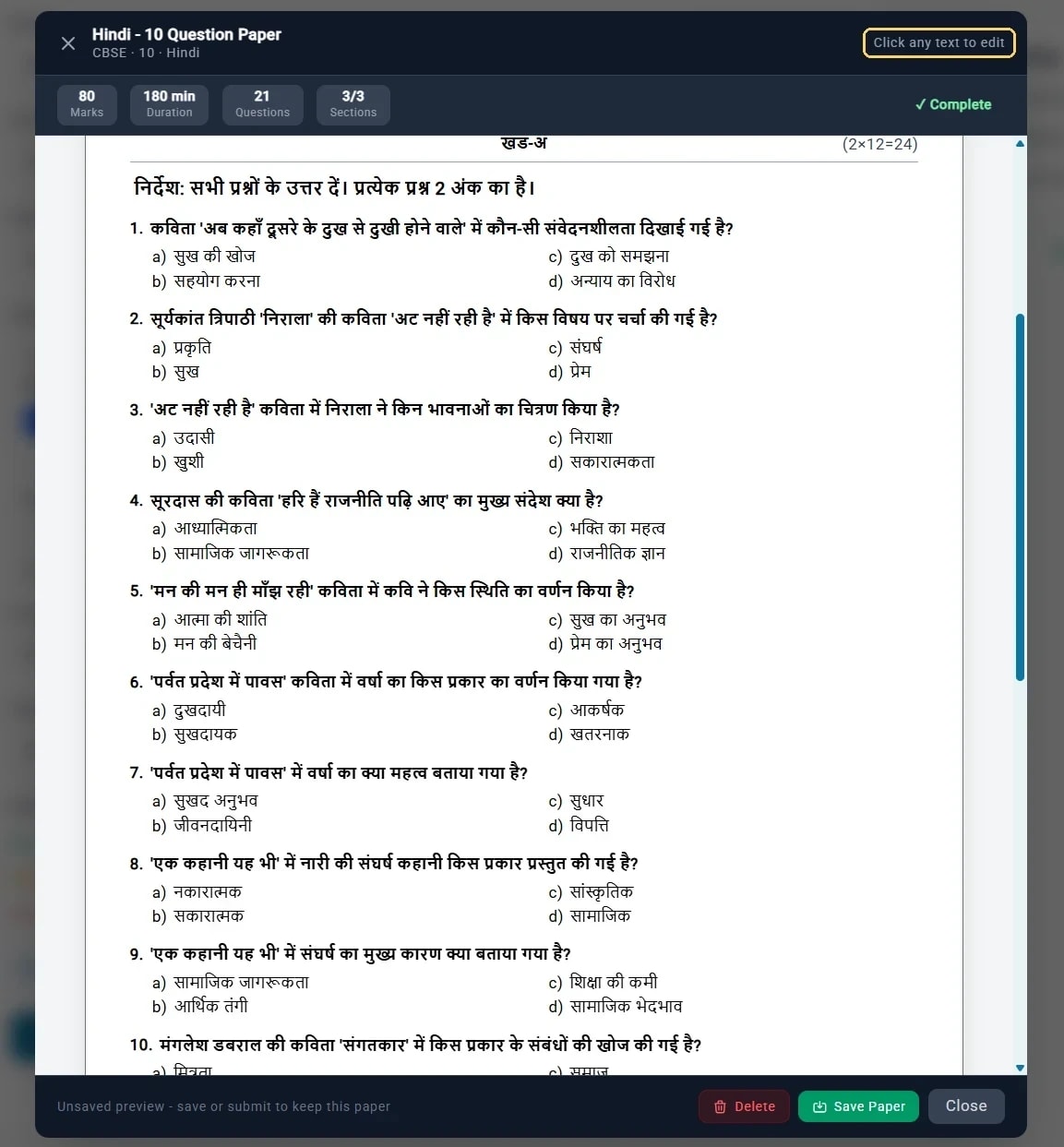
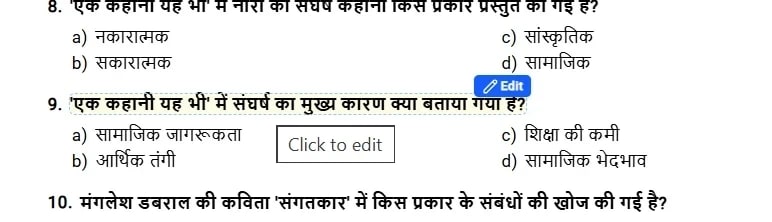
Click any question or option and type your change directly in place. When you are happy, click Save Paper at the bottom. If you do not like the paper at all, click Delete and generate again.
The preview is not kept until you click Save Paper, so save it if you want to edit it again later.
Place 2: Edit any saved paper from Paper Management
Use this when you want to change a paper you saved earlier, or make deeper changes such as a question’s marks or difficulty.
Step 1: Open Paper Management
In the left sidebar, click Paper Management. It sits between Create Paper and Export & Print. You will see a list of every paper you have saved, with its subject, class, total marks, duration, creation date, exam type and status.
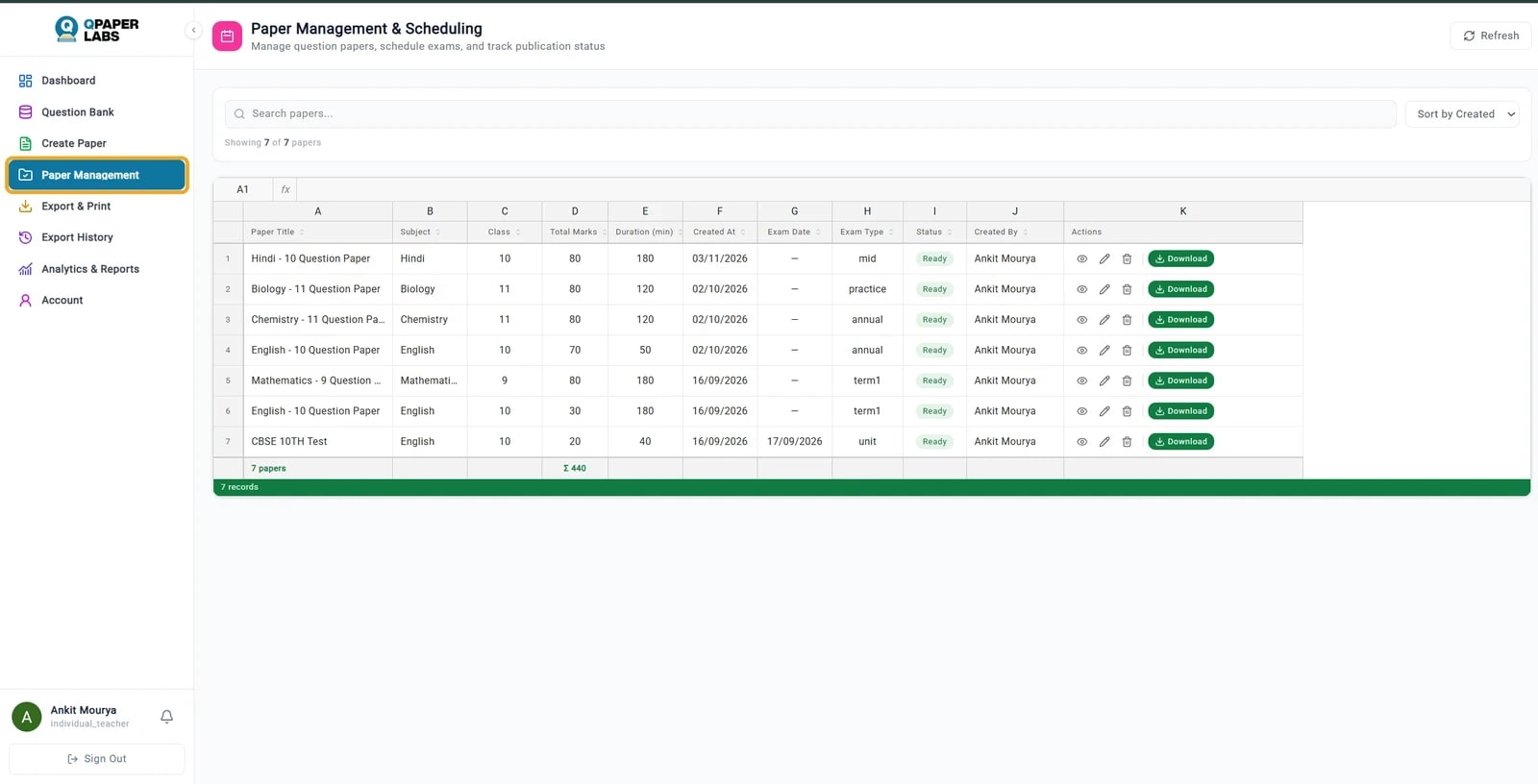
At the end of each row are four actions:
Action | What it does |
|---|---|
View paper (eye icon) | Open the paper to read it as it will print |
Edit paper (pencil icon) | Open the paper in edit mode |
Delete (bin icon) | Remove the paper |
Download | Export the latest version of the paper |
To check a paper before changing it, click the eye icon (View paper).

Step 2: Click Edit paper
Find the paper you want to change and click the pencil icon (Edit paper) in its row.

Step 3: Choose the question to edit
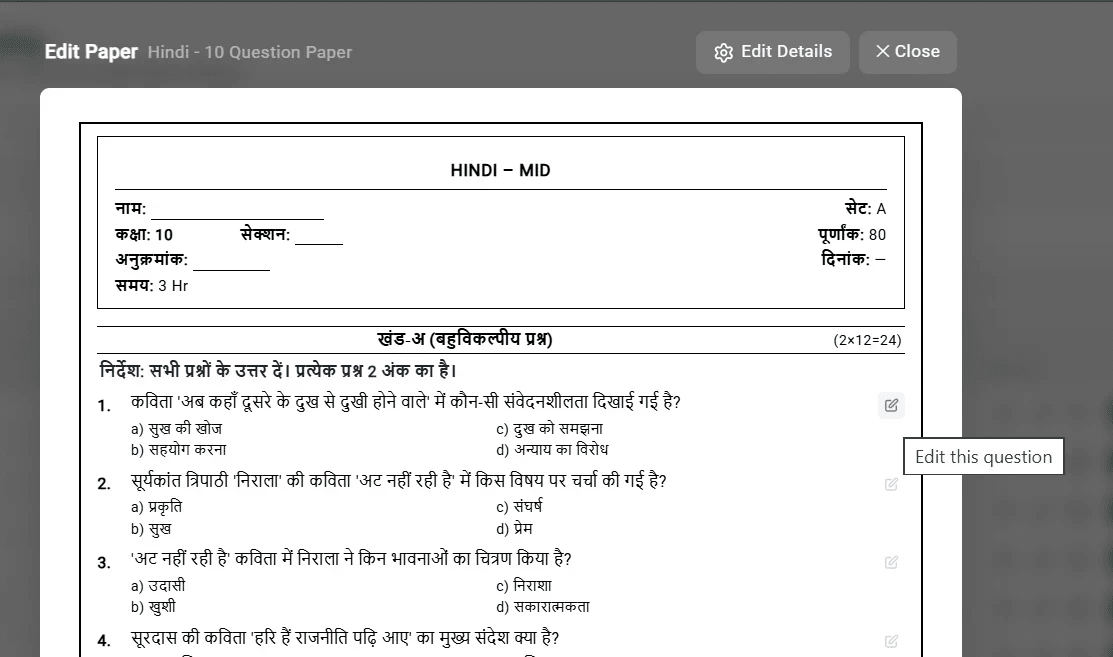
The Edit Paper screen shows the full paper exactly as it will print, with the header (name, class, roll number, set, total marks and time) and every section. Each question has a small edit icon on the right. Hover over it to see Edit this question, then click it. To change the paper’s own details, use Edit Details at the top.
Step 4: Change the question and save
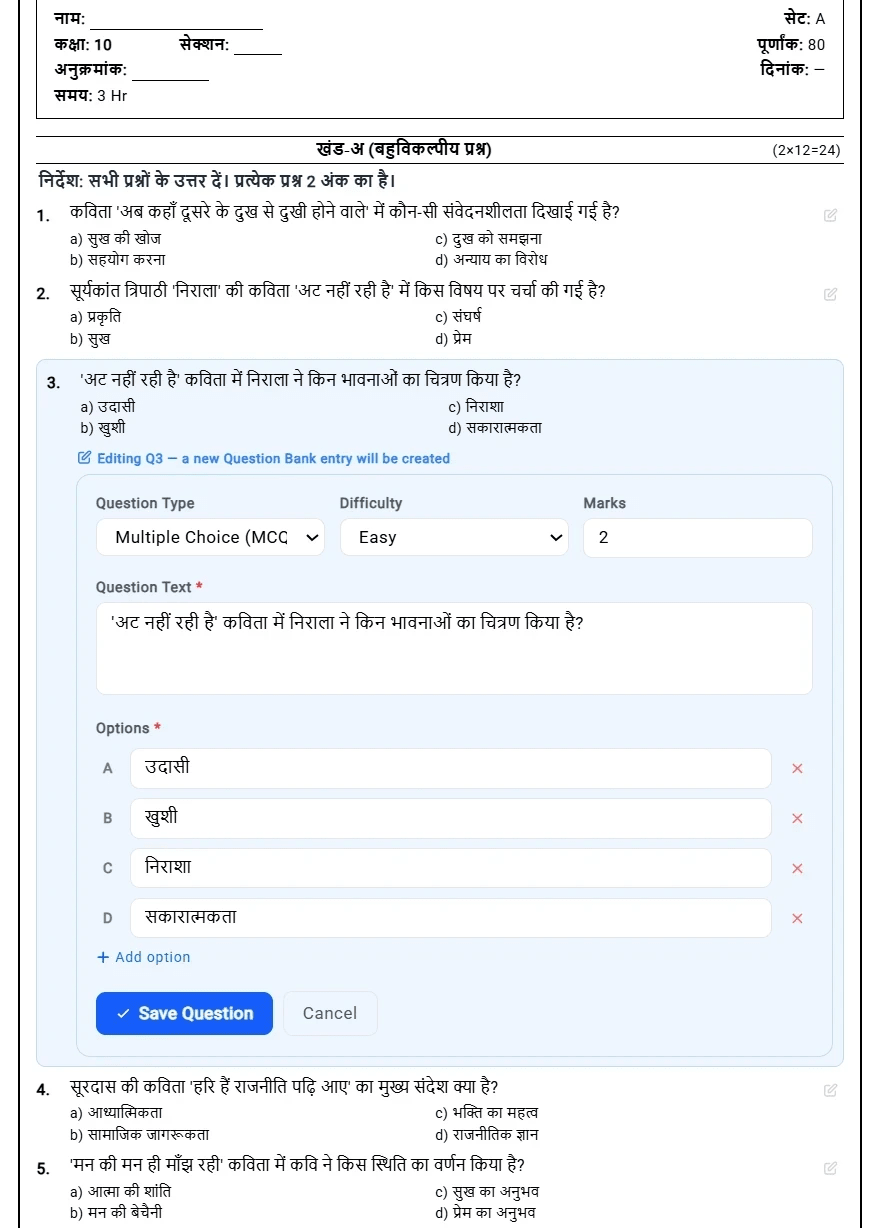
An edit form opens right under the question. You can change:
Question type, for example from MCQ to another type
Difficulty: easy, medium or hard
Marks for that question
Question text
Options: edit any option, remove one with ✕, or add one with + Add option
Click Save Question to keep the change, or Cancel to leave the question as it was. Then move on to the next question. There is no limit on how many questions you edit, or how many times.
Your edits also grow your question bank
When you save an edited question, QPaper Labs creates a new entry in your Question Bank. The original question stays as it was, and your improved version is saved for reuse. Over time, every correction you make builds a bank of checked questions in your own words, ready for the next paper.
Quick guide: where to make each change
You want to… | Where | How |
|---|---|---|
Fix a typo or matra right after generating | Generated paper preview | Click the text and correct it |
Change a question’s marks | Paper Management → Edit paper | Edit this question → Marks |
Make a question easier or harder | Paper Management → Edit paper | Edit this question → Difficulty and text |
Replace or add an MCQ option | Paper Management → Edit paper | Edit options, ✕ to remove, + Add option |
Change the paper’s details | Paper Management → Edit paper | Edit Details |
Start over | Generated paper preview | Delete and generate again |
Editing works the same way for English and Hindi papers, so you can fix wording and matras directly in Devanagari. See how to make a Hindi question paper with AI.
A quick review checklist before you print
[ ] Every question is from the chapters you selected
[ ] Each MCQ has exactly one correct option
[ ] Spellings, numbers and units are correct
[ ] Marks per question add up to the paper total
[ ] Section instructions match the marks shown, for example (2×12=24)
For a full guide on planning a balanced paper, read how to make a question paper.
Frequently asked questions
Where do I edit a saved question paper in QPaper Labs?
Click Paper Management in the left sidebar, find the paper, and click the pencil icon (Edit paper). Then click the edit icon next to any question.
Can I edit a question paper right after the AI generates it?
Yes. The preview opens as soon as the paper is ready. Click any text to change it, then click Save Paper.
Can I change the marks or difficulty of one question?
Yes. In Edit Paper, click Edit this question. The form lets you change its type, difficulty, marks, text and options.
Is there a limit on how many times I can edit a paper?
No. You can edit any question as many times as you need before printing or exporting.
Do I have to regenerate the whole paper to change one question?
No. Edit only that question. The rest of the paper stays the same.
What happens to the original question when I edit it?
It stays unchanged. Your edited version is saved as a new entry in your Question Bank, so you can reuse it in future papers.
Generate fast, edit freely
Let AI write the first draft, then make it yours in a few clicks. Try QPaper Labs free for 7 days, and see how quickly you can create a CBSE question paper with AI.